Xcode Projects for the Command Line and Coding Agents


App by the author
Nardy — Backgammon & Long Narde
Long Narde and classic backgammon for iPhone. Play a friend or a chatty AI, and on iPhone Duo the fold becomes the bar.
Xcode 27.2 beta 2 introduced a new project format. Instead of the old
project.pbxproj property list, a project can store its configuration in
project.xcproj, a JSON file with readable keys and no object IDs for every
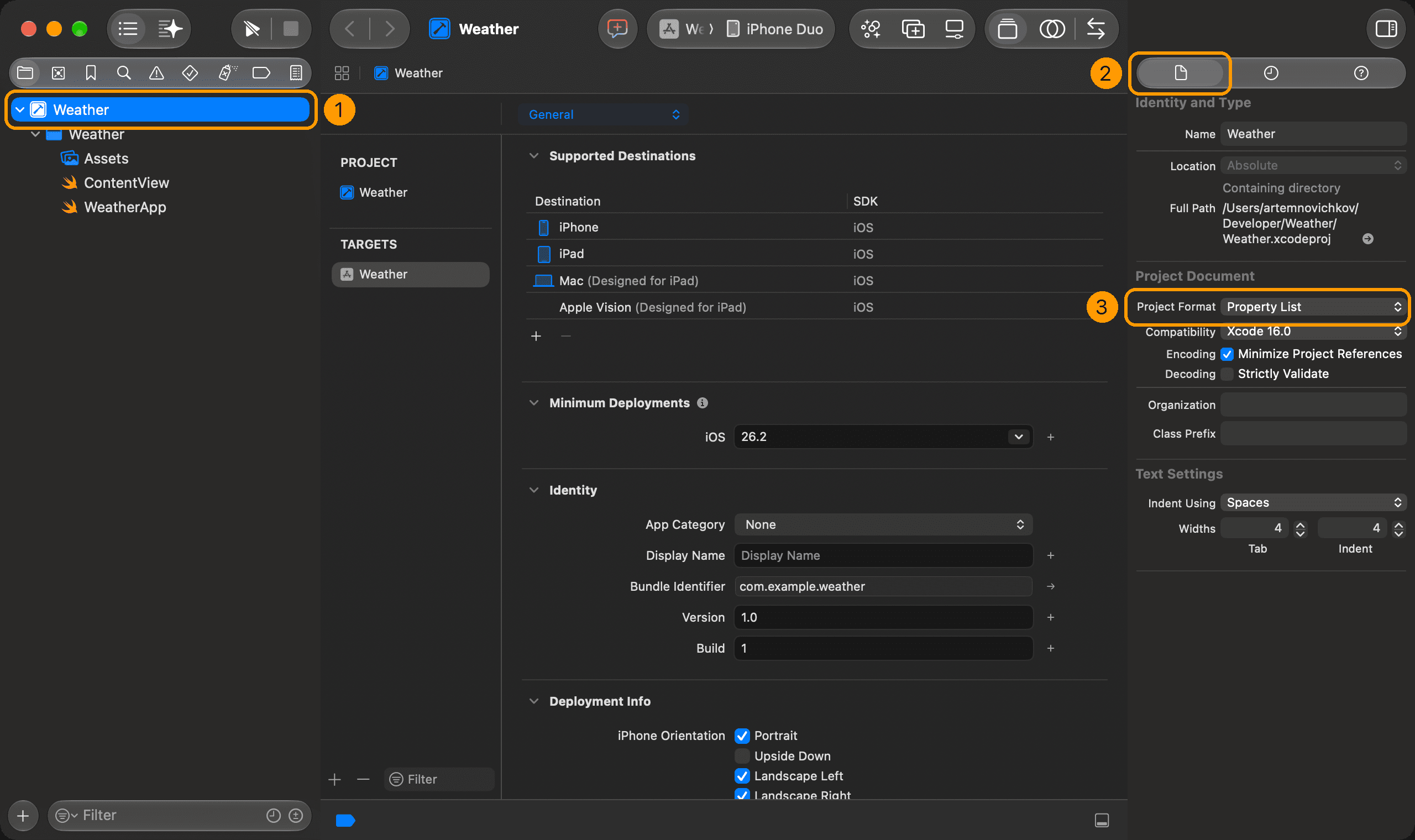
build file. To switch, select the project in the Project navigator (1), open
the File inspector (2), and choose JSON in the Project Format pop-up
under Project Document (3):
Xcode also ships two command-line tools for the new format:
xcprojformattercame with the format in beta 2. It's a formatter for project files, likeswift-formatfor code: it checks that aproject.xcprojfile is valid and rewrites it with sorted keys and consistent layout.xcodeprojarrived in beta 3. It reads and edits projects from the terminal: targets, build phases, groups, build settings, xcconfig files, and Swift packages.
Neither is on your PATH, so run them with xcrun. Everything below is
checked on Xcode 27.2 (27B52).
If you use CocoaPods, a plain xcodeproj in the terminal may run the
xcodeproj Ruby gem instead. Check with which xcodeproj and always call
Apple's tool as xcrun xcodeproj.
Apple's
article
covers the format itself, and the tools come with detailed --help. This
post covers what each tool does and where it helps in practice.
Creating a project from scratch
xcodeproj init creates an empty project in the JSON format:
$ xcrun xcodeproj init Weather.xcodeproj
Created '/Users/you/Weather/Weather.xcodeproj' (project 'Weather').
$ cat Weather.xcodeproj/project.xcproj
{
  "default-configuration": "Release",
  "configurations": [
    "Debug",
    "Release",
  ],
  "localizations": {
    "development": "en",
    "supported": [
      "Base",
    ],
  },
  "files": [
  ],
  "products-group": null,
}
The trailing commas aren't a typo. The file is JSON5, a superset of JSON that also allows comments, unquoted keys, and single-quoted strings. Xcode writes only the trailing commas. The formatter turns everything else back into plain JSON and drops comments.
There's no template option, so everything Xcode's New Project sheet does
takes a separate command. Here's the minimum for an iOS app with a single
source file, Weather/WeatherApp.swift:
# 1. Create an app target with Sources and Frameworks phases
xcrun xcodeproj target add Weather --product-type application
xcrun xcodeproj target phase add sources --target Weather
xcrun xcodeproj target phase add frameworks --target Weather

# 2. Compile everything in the Weather folder
xcrun xcodeproj group add Weather --filesystem-path Weather
xcrun xcodeproj group include --group /Weather --target Weather

# 3. Build for iOS 18 and later with Swift 6
xcrun xcodeproj setting set SDKROOT iphoneos
xcrun xcodeproj setting set IPHONEOS_DEPLOYMENT_TARGET 18.0
xcrun xcodeproj setting set SWIFT_VERSION 6.0

# 4. Set the bundle ID and generate a launch screen, like Xcode's app template
xcrun xcodeproj setting set PRODUCT_BUNDLE_IDENTIFIER com.example.weather --target Weather
xcrun xcodeproj setting set INFOPLIST_KEY_UILaunchScreen_Generation YES --target Weather
What each step does:
- Build phases. A new target has none, and nothing compiles without a
Sources phase. The Frameworks phase is where package products get linked,
and
pkg addfails without it. Add a Resources phase too if the app has asset catalogs or other resources. - Synchronized group. Xcode picks up new files in the
Weatherfolder automatically, so you never register them one by one./Weatheris a group path in the Project navigator, not a filesystem path, and everygroupandtargetcommand addresses groups this way. - Platform and Swift version.
initdoesn't add any defaults from Xcode's templates. WithoutSWIFT_VERSION, the build fails. Without a deployment target, it defaults to the SDK version, so the app runs only on the latest OS. Set it to the oldest version you want to support. - Bundle ID and launch screen. Without a bundle ID, the app builds but
simctl installrejects it. The launch screen key is what Xcode's app template sets.
target add already sets PRODUCT_NAME and GENERATE_INFOPLIST_FILE, so the
app doesn't need an Info.plist file.
Changing build settings
setting set writes to the project by default and to a target with
--target. --config scopes a value to one configuration. Values that start
with a dash need a bare -- before them, and -- ends option parsing, so put
--config first:
$ xcrun xcodeproj setting set --config Debug SWIFT_OPTIMIZATION_LEVEL -- -Onone
$ xcrun xcodeproj setting set --config Release SWIFT_OPTIMIZATION_LEVEL -- -O
$ xcrun xcodeproj setting get SWIFT_OPTIMIZATION_LEVEL
xcodeproj: note: value differs across configurations — re-run with --config <name> to pin one down, e.g. for scripting.
SWIFT_OPTIMIZATION_LEVEL (single) on the project (raw, unevaluated — direct from the .xcodeproj):
  Debug: '-Onone'
  Release: '-O'
In the JSON file, both values end up in the same dictionary, with the configuration written as a suffix:
"build-settings": {
  "SWIFT_OPTIMIZATION_LEVEL[config=Debug]": "-Onone",
  "SWIFT_OPTIMIZATION_LEVEL[config=Release]": "-O",
},
get and list print raw values. They don't evaluate macros or read the
contents of xcconfig files. For resolved values, use
xcodebuild -showBuildSettings.
The tool knows which settings are lists. OTHER_LDFLAGS or
GCC_PREPROCESSOR_DEFINITIONS go through setting set-multi, and setting set
rejects them. The opposite also holds: OTHER_SWIFT_FLAGS is single-valued
here, so set-multi rejects it.
Moving settings to an xcconfig file
setting set takes one key and one value per call, so every setting is a
separate command. To set several at once, put them in an xcconfig file:
SDKROOT = iphoneos
IPHONEOS_DEPLOYMENT_TARGET = 18.0
SWIFT_VERSION = 6.0
Then add it to the project and link it to every configuration:
# Add the file to a regular group
xcrun xcodeproj group add Config
xcrun xcodeproj group add-file Project.xcconfig --group /Config

# Use it as the base configuration for Debug and Release
xcrun xcodeproj config set Project.xcconfig --group /Config
The project file only gets a reference, and the values stay in a file that's easy to read and review:
"configurations": [
  { "name": "Debug", "file": "Config/Project.xcconfig" },
  { "name": "Release", "file": "Config/Project.xcconfig" },
],
A project-level xcconfig applies to every target, including test bundles you add later, so keep target-specific values like the bundle ID on the target itself.
setting get doesn't read xcconfig files, so keys set there show up as
unset:
$ xcrun xcodeproj setting get SWIFT_VERSION
SWIFT_VERSION (single) on the project (raw, unevaluated — direct from the .xcodeproj):
  Debug: (unset)  (xcconfig: Project.xcconfig)
  Release: (unset)  (xcconfig: Project.xcconfig)
Adding Swift packages
pkg add adds a remote package and, with --product and --target, links a
product in the same step:
$ xcrun xcodeproj pkg add https://github.com/pointfreeco/swift-dependencies \
    --from 1.9.0 --product Dependencies --target Weather
Added remote package 'swift-dependencies' (https://github.com/pointfreeco/swift-dependencies).
Requirement: up to next major version from 1.9.0
Linked product 'Dependencies' into target 'Weather'.--from means "up to next major version". The other requirement kinds from
Xcode's UI have their own flags:
| Requirement | Flag |
|---|---|
| Up to next minor version | --up-to-next-minor 1.2.0 |
| Exact version | --exact 1.2.0 |
| Range | --range-min 1.0.0 --range-max 2.0.0 |
| Branch | --branch main |
| Commit | --revision <sha> |
The rest of the pkg commands cover what's left in the Package Dependencies
tab:
pkg add-localadds a local package.pkg link --embedlinks a product and embeds a dynamic framework.pkg link-pluginruns a build-tool plugin.pkg unlink,pkg unlink-plugin, andpkg removeundo them.
Checking the result
A few read-only commands show what the project contains:
$ xcrun xcodeproj target info --target Weather
Name: Weather
Kind: native
Product Type: application
Dependencies: (none)

Phases:
#  Kind        Files
1  sources     1
2  frameworks  1
$ xcrun xcodeproj group ls
/:
  Products/  [no folder]  (id: 25706A305BDC56506436E060)
  Weather  [filesystem-synchronized -> /Users/you/Weather/Weather]  (id: EBEC48B10466902DC42B962D)
$ xcrun xcodeproj pkg list
swift-dependencies  [remote]  https://github.com/pointfreeco/swift-dependencies
  Requirement: up to next major version from 1.9.0
  Linked products:
    Dependencies -> Weather
Phases are addressed by their index from target info, not by kind, because
a target can have several phases of the same kind.
The whole project file is now about 60 lines, and xcodebuild builds it as
is. xcodeproj never creates schemes or workspaces, but xcodebuild
generates a scheme automatically:
$ xcodebuild -scheme Weather -destination 'generic/platform=iOS Simulator' build
** BUILD SUCCEEDED **
Old projects and smaller diffs
xcodeproj isn't limited to the new format. It edits project.pbxproj files
too, and the changes are minimal:
$ xcrun xcodeproj setting set SWIFT_STRICT_CONCURRENCY complete --target MarkdownExample
$ git diff --stat
 MarkdownExample.xcodeproj/project.pbxproj | 2 ++
xcodeproj can't convert a project to JSON, but xcodebuild can. It's the
same switch as the File inspector, without opening Xcode:
# Convert to JSON
xcodebuild -project Weather.xcodeproj -convert-project xcproj

# Convert back to a property list
xcodebuild -project Weather.xcodeproj -convert-project pbxproj
The new file replaces the old one, so commit before converting.
Projects in the JSON format also open in Xcode 27.0 and 27.1, so the whole team doesn't have to be on 27.2. The command-line tools ship only with 27.2.
The new format pays off in diffs. Here's the same pkg add of
swift-collections in both formats. The property list gets 24 new lines in
five places, three generated IDs, and three new sections:
+/* Begin PBXBuildFile section */
+		069B6A453080FC4100C4B73B /* OrderedCollections in Frameworks */ = {isa = PBXBuildFile; productRef = 069B6A443080FC4100C4B73B /* OrderedCollections */; };
+/* End PBXBuildFile section */
 ...
+				069B6A453080FC4100C4B73B /* OrderedCollections in Frameworks */,
 ...
+				069B6A443080FC4100C4B73B /* OrderedCollections */,
 ...
+				069B6A433080FC4100C4B73B /* XCRemoteSwiftPackageReference "swift-collections" */,
 ...
+/* Begin XCRemoteSwiftPackageReference section */
+		069B6A433080FC4100C4B73B /* XCRemoteSwiftPackageReference "swift-collections" */ = {
+			isa = XCRemoteSwiftPackageReference;
+			repositoryURL = "https://github.com/apple/swift-collections";
+			requirement = {
+				kind = upToNextMajorVersion;
+				minimumVersion = 1.2.0;
+			};
+		};
+/* End XCRemoteSwiftPackageReference section */
+
+/* Begin XCSwiftPackageProductDependency section */
+		069B6A443080FC4100C4B73B /* OrderedCollections */ = {
+			isa = XCSwiftPackageProductDependency;
+			package = 069B6A433080FC4100C4B73B /* XCRemoteSwiftPackageReference "swift-collections" */;
+			productName = OrderedCollections;
+		};
+/* End XCSwiftPackageProductDependency section */
The JSON file gets 12 lines in two places, and a reviewer can read them:
   "packages": [
+    {
+      "kind": "remote",
+      "repository": "https://github.com/apple/swift-collections",
+      "version": {
+        "up-to-next-major-version": "1.2.0",
+      },
+    },
   ],
   ...
       "package-product-members": [
+        {
+          "package": "swift-collections",
+          "product-name": "OrderedCollections",
+          "build-phase": { "build-phase": "frameworks" },
+        },
Catching broken files with xcprojformatter
xcprojformatter parses a project file and prints it back in canonical form:
keys sorted, defaults omitted, comments removed. It doesn't support
project.pbxproj.
# Print the canonical form
xcrun xcprojformatter Weather.xcodeproj

# Rewrite the file in place
xcrun xcprojformatter --update Weather.xcodeproj

# Read from standard input
xcrun xcprojformatter < project.xcproj
An invalid file makes it exit with an error. Here's what it prints for a few broken edits:
| Edit | Error |
|---|---|
Remove a target's id | Missing required value for key “id” at “/targets[0]” |
Misspell the compile-sources phase | Unexpected value “compile-source” |
Set a target's name to a number | Expected an instance of string but an instance integer was specified |
Only the first error includes a path to the problem. The other two don't say where it is.
Unknown keys don't cause an error. The formatter silently drops them. A typo
like build-setings produces a valid project that ignores your settings. The
formatter shows it as a removed line:
$ xcrun xcprojformatter Weather.xcodeproj | diff Weather.xcodeproj/project.xcproj -
38d37
<       "build-setings": { "FOO": "1" },
So the useful check is whether the formatter changes anything. That makes a good CI step:
#!/bin/sh
set -e
for project in $(git ls-files '*.xcodeproj/project.xcproj'); do
  if ! xcrun xcprojformatter "$project" | diff -u "$project" -; then
    echo "error: $project isn't canonical." >&2
    echo "Run: xcrun xcprojformatter --update $(dirname "$project")" >&2
    exit 1
  fi
done
It exits with an error when someone edits the file by hand without formatting it, and the diff shows exactly which lines the formatter would drop.
Resolving merge conflicts in JSON
The JSON format doesn't make conflicts disappear. I added a package and a build setting on one branch, and a different package, a different setting, and a widget target on another. The new target merged cleanly, but both package additions and both settings conflicted, since sorted entries land next to each other:
    }, {
      "kind": "remote",
<<<<<<< HEAD
      "repository": "https://github.com/apple/swift-collections",
=======
      "repository": "https://github.com/apple/swift-algorithms",
>>>>>>> b
      "version": {
        "up-to-next-major-version": "1.2.0",
      },
    },
These conflicts are readable, but don't just keep both sides. Here it creates
an object with two repository keys. The formatter accepts it and silently
drops one, so the merged project loses a package without an error:
$ xcrun xcprojformatter Weather.xcodeproj | diff Weather.xcodeproj/project.xcproj -
23d22
<       "repository": "https://github.com/apple/swift-algorithms",
55,56d53
<           "package": "swift-algorithms",
<           "product-name": "Algorithms",
Array entries have to become separate objects again:
    }, {
      "kind": "remote",
      "repository": "https://github.com/apple/swift-collections",
      "version": {
        "up-to-next-major-version": "1.2.0",
      },
    }, {
      "kind": "remote",
      "repository": "https://github.com/apple/swift-algorithms",
      "version": {
        "up-to-next-major-version": "1.2.0",
      },
    },
Dictionary entries like build settings are fine to keep side by side as long
as the keys differ. After resolving, the formatter diff may move lines into
sorted order, but it shouldn't drop any. Run
xcrun xcprojformatter --update, then check that xcrun xcodeproj pkg list
and xcrun xcodeproj target list show both branches' changes.
Or skip the manual merge: take one side of the file and replay the other
branch's changes with xcodeproj. Changes that merged cleanly, like the widget
target here, need replaying too.
Handing the CLI to agents
You'll rarely type the commands above yourself. Adding a target in Xcode is
still faster than five commands and a few build settings. The CLI is for
coding agents: Apple pitches the JSON format as easier for them to edit, and
xcodeproj looks designed for them too. Its help pages are long, explain each
edge case, and point to the next command. Errors list what's available or
say which command to use instead:
$ xcrun xcodeproj target info --target Wether
Error: No target named 'Wether' in project.
Available targets: Weather
$ xcrun xcodeproj group include Foo.swift --group /Weather --target Weather
Error: No file named 'Foo.swift' directly in '/Weather' (looked on disk at /Users/you/Weather/Weather). Available: WeatherApp.swift
$ xcrun xcodeproj setting set-multi OTHER_SWIFT_FLAGS -- -warn-concurrency
Error: 'OTHER_SWIFT_FLAGS' is a single-valued build setting; use `setting set` instead of `setting set-multi`.
Agents can edit the JSON file directly, but the tool is safer. It generates unique IDs for new targets and products, keeps the format canonical, and checks things like dependency cycles before it writes anything.
An agent won't reach for the tool on its own, though. It's new, it's not on
the PATH, and models haven't seen it in training data. Everything this post
covers, from the order of commands to the gotchas below, is context the agent
needs. A few lines in CLAUDE.md or AGENTS.md pass it along:
## Xcode project

- Change `.xcodeproj` files only with `xcrun xcodeproj` (Xcode 27.2+).
  Never edit `project.xcproj` or `project.pbxproj` by hand.
- Run `xcrun xcodeproj help <command>` before using a command for the first
  time. Use `target list`, `target info`, `group ls`, and `pkg list` to
  inspect the project before changing it.
- If the folder has more than one `.xcodeproj`, pass `--project <path>`.
- For a filesystem-synchronized group, create files on disk instead of
  adding file references.
- Add build phases to a new target before including a synchronized group
  in it.
- `setting get` shows raw values. Use `xcodebuild -showBuildSettings` for
  resolved ones.
- If the project uses `project.xcproj`, run this after every change. The
  output must be empty:
  `xcrun xcprojformatter <path>.xcodeproj | diff <path>.xcodeproj/project.xcproj -`
There's no project name in it, so you can paste it into any project. With one
.xcodeproj in the folder, xcodeproj finds it automatically. With several,
the agent passes --project, or you set XCODEPROJ_PROJECT to the project's
path.
If you'd rather install that context than paste it, I keep it as a skill,
xcproj. It
keeps the agent on these commands instead of editing the project file as text,
and checks the result with xcprojformatter afterwards.
What about Xcode's MCP server?
Xcode also gives agents an MCP server through xcrun mcpbridge, and some of
its tools overlap with xcodeproj. XcodeNewProject and
XcodeNewTarget create projects and targets from Xcode's templates,
XcodeMakeDir creates synchronized folders (or classic groups with
directoryKind: "group" since 27.2), and GetTargetBuildSettings and
UpdateTargetBuildSetting read and change target build settings.
The MCP tools go through a running Xcode with the project open, or through
headless Xcode, which you turn on with sudo xcrun mcp-server enable. I
covered that setup in
Headless Xcode: From Prompt to Simulator with MCP.
The MCP tools can't add Swift packages, link xcconfig files, or edit build
phases, and they change build settings only per target, without project-level
or per-configuration values. If you already use the MCP server, it covers
templates, previews, and running the app on a simulator. xcodeproj handles
the project file edits the MCP tools can't do, and it's a plain command with
no server or permissions to set up.
Gotchas
A few things I ran into while testing.
Add build phases before synchronized groups
Include a synchronized group in a target that has no Sources phase and the membership comes out clean. Adding the phase afterwards is what writes the exclusions, one entry per file in the folder:
{
  "kind": "folder",
  "path": "Weather",
  "target-membership": [ "Weather" ],
  "membership-exceptions": [
    { "target": "Weather", "exclusions": [ "WeatherApp.swift" ] },
  ],
}
Nothing compiles, and the build fails at linking with no hint about why. Including the group again doesn't help, since it's already included. Include each excluded file instead:
$ xcrun xcodeproj group include WeatherApp.swift --group /Weather --target WeatherOr add the phases first.
Test targets need manual wiring
Xcode's New Target sheet does more than target add does. A unit test target
created from the CLI has no host app, so @testable import fails. Here's the
full setup, assuming a WeatherTests folder with the tests:
# Create the test bundle with a Sources phase
xcrun xcodeproj target add WeatherTests --product-type unit-test-bundle
xcrun xcodeproj target phase add sources --target WeatherTests

# Compile everything in the WeatherTests folder
xcrun xcodeproj group add WeatherTests --filesystem-path WeatherTests
xcrun xcodeproj group include --group /WeatherTests --target WeatherTests

# Build the app before the tests
xcrun xcodeproj target add-dependency WeatherTests Weather

# Run the tests inside the app and link against its binary
xcrun xcodeproj setting set TEST_HOST '$(BUILT_PRODUCTS_DIR)/Weather.app/$(BUNDLE_EXECUTABLE_FOLDER_PATH)/Weather' --target WeatherTests
xcrun xcodeproj setting set BUNDLE_LOADER '$(TEST_HOST)' --target WeatherTests

# Allow @testable import in Debug builds
xcrun xcodeproj setting set --config Debug ENABLE_TESTABILITY YES
The last line is needed for projects created with init. Projects from
Xcode's templates already have it.
xcodeproj also never touches schemes, which is fine with auto-generated
ones. xcodebuild picks up the hosted test target, so both -scheme Weather
and -scheme WeatherTests run the new tests. xcodebuild -list doesn't show
the WeatherTests scheme, but -scheme WeatherTests still works. A shared
scheme in xcshareddata/xcschemes is the exception: its Test action won't
include WeatherTests until you add the target to the scheme in Xcode.
Keep xcconfig files out of synchronized groups
Putting Project.xcconfig next to the sources in Weather/ seems natural,
but config set refuses to link it:
$ xcrun xcodeproj config set Project.xcconfig --group /Weather
Error: '/Weather' is a filesystem-synchronized group -- 'config set' cannot link an xcconfig file that lives inside a synchronized group's own tracked directory to a build configuration.
The error is longer than that and suggests the fix: keep xcconfig files in a
regular group, like Config above, outside any synchronized folder.
Going further with the Swift package
Apple also open-sourced the format as
xcode-project-format, a
Swift package that models project.xcproj as value types under the
XCSchema namespace. xcprojformatter is built on it. If the CLI doesn't
cover your case, for example a custom linter that checks every target's
deployment target, you can read and write the project with typed models
instead of parsing JSON:
import XcodeProjectFormat

let data = try Data(contentsOf: projectURL)
let project = try XCSchema.Project(jsonRepresentation: data)
for target in project.targets {
    print(target.name)
}
The format and both tools are still new and have rough edges, as the gotchas above show. Tuist and XcodeGen remain an option, but for many projects a readable project file and a CLI from Apple may be enough.