

App by the author
Nardy — Backgammon & Long Narde
Long Narde and classic backgammon for iPhone. Play a friend or a chatty AI, and on iPhone Duo the fold becomes the bar.
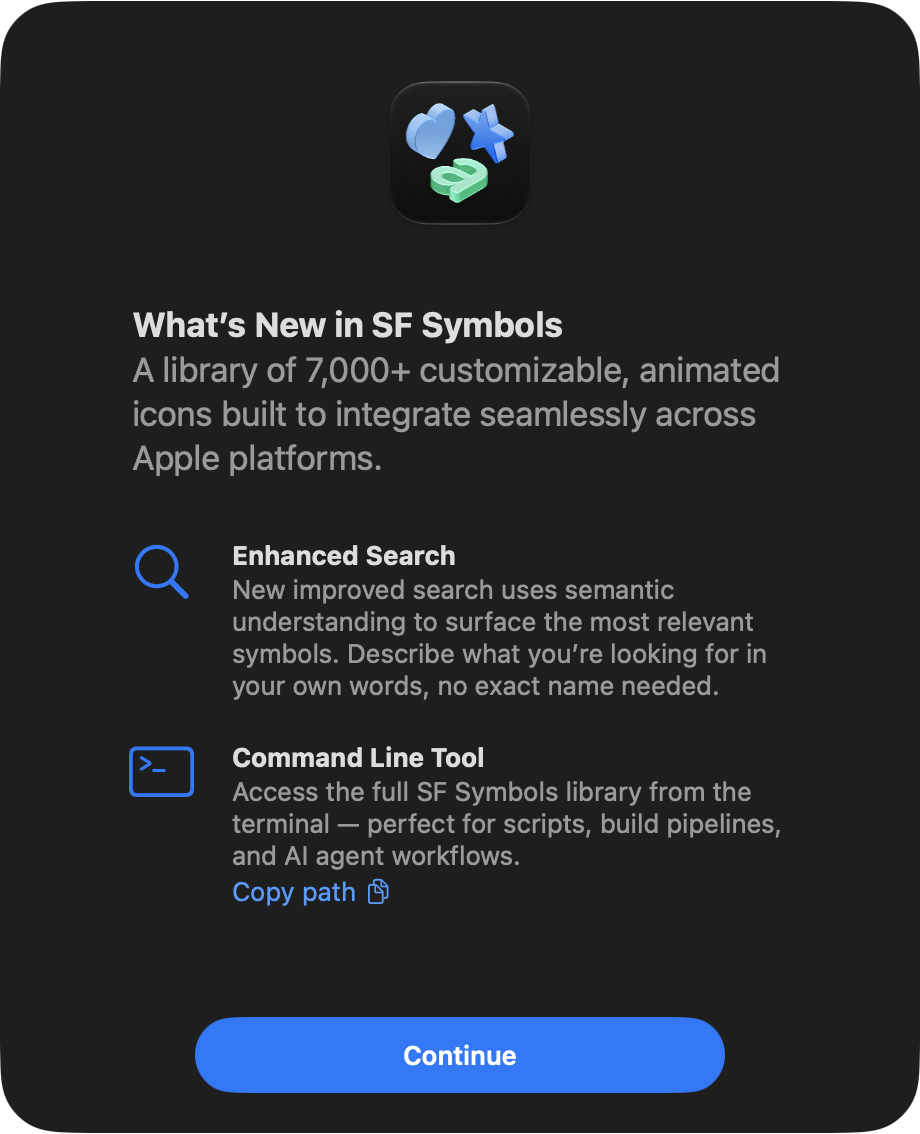
SF Symbols 27 ships a command-line tool. Apple mentions it in the What's New window, next to a Copy path button, and pitches it for scripts and AI agents:
It has two commands, search and export, and they cover more than looking
up names. You can check a symbol against your deployment target, catch
renames, and render PNGs without opening the app.
Setting up
The binary lives inside the app bundle:
$ "/Applications/SF Symbols.app/Contents/Executables/sfsymbols" --help
usage: sfsymbols <command> [<args>]

Commands:
  search    Search the SF Symbols catalog
  export    Export a symbol to SVG, PNG, or PDF
  help      Show help for a command
The path is long and has a space in it, so add an alias to your shell config:
alias sfsymbols='"/Applications/SF Symbols.app/Contents/Executables/sfsymbols"'A symlink won't work. The tool looks for SF Symbols.app relative to its own
path, so a link in /usr/local/bin fails to find its resources.
The rest of the post uses plain sfsymbols. sfsymbols help search and
sfsymbols help export list every option.
Searching
A bare query searches the whole catalog. Two flags make the output more useful:
$ sfsymbols search heart --limit 3 --show-codepoint --show-availability
U+1002B4  heart         iOS=13.0  macOS=11.0  Mac Catalyst=13.0  tvOS=13.0  watchOS=6.0  visionOS=1.0
U+1002B5  heart.fill    iOS=13.0  macOS=11.0  Mac Catalyst=13.0  tvOS=13.0  watchOS=6.0  visionOS=1.0
U+1002B8 heart.circle iOS=13.0 macOS=11.0 Mac Catalyst=13.0 tvOS=13.0 watchOS=6.0 visionOS=1.0--show-glyph adds the symbol itself as the first column. It renders in
Terminal on macOS, which falls back to SF Pro, but not in most editors.
Match styles
The default style, permissive, matches name components, aliases, tags, and
lemmas, the same way the app's search does. That's why weather starts with
winter sports:
$ sfsymbols search weather --limit 3
figure.skiing.crosscountry
figure.snowboarding
sun.min--match-style switches to two stricter styles that only look at names:
nameContains:car.fillmatchescar.fillandcablecar.fill.exactName:car.fillmatches onlycar.fill.
Categories
--category-filter takes the same categories as the app's sidebar. A plain
bolt search starts with the bolt itself, while the weather category turns
it into thunderstorms:
$ sfsymbols search bolt --limit 3
bolt
bolt.heart
bolt.fill
$ sfsymbols search bolt --category-filter weather --limit 3
cloud.bolt
cloud.bolt.fill
cloud.bolt.circle
An unknown key prints the full list, so --category-filter help is the fastest
way to see them. My favorite is whatsnew, which answers "what did Apple add
this year?":
$ sfsymbols search "" --category-filter whatsnew --limit 3 --show-availability
folder.and.person       iOS=27.0  macOS=27.0  Mac Catalyst=27.0  tvOS=27.0  watchOS=27.0  visionOS=27.0
folder.and.person.fill  iOS=27.0  macOS=27.0  Mac Catalyst=27.0  tvOS=27.0  watchOS=27.0  visionOS=27.0
paintbrush.slash        iOS=27.0  macOS=27.0  Mac Catalyst=27.0  tvOS=27.0  watchOS=27.0  visionOS=27.0
Reverse lookup
Search works on code points too:
$ sfsymbols search U+1002B5
heart.fill
You can also paste the glyph itself, for example one copied from a Figma file, and get the name back.
Checking your deployment target
--min-platform takes your deployment target, written as a platform and
version with no space, like iOS16, and keeps only symbols available on that
version. Repeat it for multiplatform apps, and a symbol has to pass every one.
Without the filter, sun.max matches seven symbols:
$ sfsymbols search sun.max --match-style nameContains
sun.max
sun.max.fill
sun.max.circle
sun.max.circle.fill
sun.max.trianglebadge.exclamationmark
sun.max.trianglebadge.exclamationmark.fill
slider.horizontal.below.sun.max
An app targeting iOS 15 and macOS 12 gets four of them:
$ sfsymbols search sun.max --match-style nameContains --min-platform iOS15 --min-platform macOS12
sun.max
sun.max.fill
sun.max.circle
sun.max.circle.fill
The filter knows about renames. xmark.bin exists on iOS 13, but under a
different name:
$ sfsymbols search xmark.bin --match-style exactName --min-platform iOS13
bin.xmark (renamed to: xmark.bin)
If your app supports iOS 13, bin.xmark is the name that works there.
Rendering modes
A symbol's availability isn't one number. --json splits it by rendering
mode:
$ sfsymbols search heart.fill --match-style exactName --json
[
  {
    "availability" : {
      "monochrome" : {
        "iOS" : "13.0",
        "macOS" : "11.0",
        ...
      },
      "multicolor" : {
        "iOS" : "15.0",
        "macOS" : "12.0",
        ...
      }
    },
    "codepoint" : "U+1002B5",
    "name" : "heart.fill"
  }
]
heart.fill is on iOS 13, but multicolor rendering needs iOS 15. The plain
text output only shows monochrome availability.
Exporting
export renders a symbol to PNG or PDF with the same options as the app's
export panel:
$ sfsymbols export heart.circle.fill \
    --format png \
    --output heart.png \
    --rendering-mode hierarchical \
    --color '#FF3366' \
    --weight semibold \
    --point-size 64 \
    --image-scale 3
sfsymbols: wrote /Users/you/heart.png
--point-size is a font size, not a canvas size. The file above is
198 × 198 pixels: the glyph's own bounds at 64 points, times three.
For several formats at once, use --output-dir instead of --output. Files
are named after the symbol:
$ sfsymbols export heart.circle.fill --format png,pdf --output-dir exports
sfsymbols: wrote /Users/you/exports/heart.circle.fill.png
sfsymbols: wrote /Users/you/exports/heart.circle.fill.pdf
SVG, the default format, isn't an icon. It's the editable design template the app produces, with all weights, scales, and annotations on a 3300 × 2200 canvas. Use it as a starting point for a custom symbol. Rendering options don't apply to it.
Letting agents verify symbols
Agents are good at picking plausible symbol names and bad at knowing whether
they exist. checkmark.circle.badge looks real, but the catalog doesn't
have it:
$ sfsymbols search checkmark.circle.badge --match-style exactName --json
[

]
$ sfsymbols search checkmark.circle.badge --match-style nameContains --limit 3
checkmark.circle.badge.plus
checkmark.circle.badge.plus.fill
checkmark.circle.badge.questionmark
A few lines in CLAUDE.md or AGENTS.md make the agent check before it
writes code:
## SF Symbols

Use `sfsymbols` to pick SF Symbols. Deployment target is iOS 17.
The binary is at `/Applications/SF Symbols.app/Contents/Executables/sfsymbols`.

- Find candidates with `sfsymbols search <query> --min-platform iOS17`.
- Verify every name you write in code with
  `sfsymbols search <name> --match-style exactName --min-platform iOS17 --json`.
  `[]` means the symbol doesn't exist or isn't available.
- Before using `.symbolRenderingMode(.multicolor)`, check that the JSON
  has a `multicolor` key and its version fits the deployment target.
Now the agent searches, verifies, and only then writes
Image(systemName:). It can also run export to show you the candidates
before touching the views.