
In a previous post, we explored rendering Markdown in SwiftUI using AttributedString and customizing its appearance. Code blocks appear frequently in technical posts, and syntax highlighting improves readability. In this post, we'll implement a simple syntax highlighter for Swift code and apply it to code blocks in Markdown.
Code highlighting with SwiftSyntax
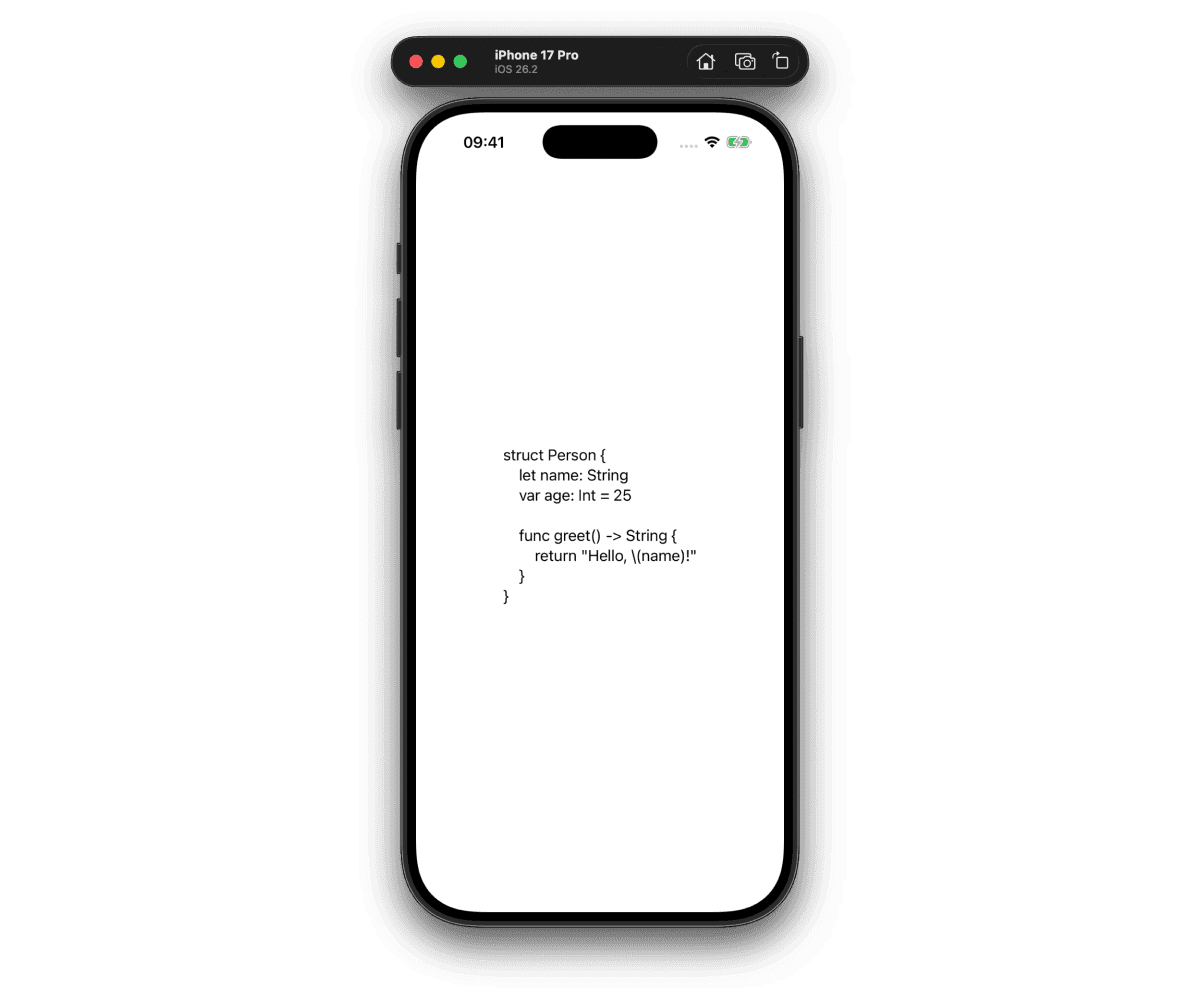
First, we'll add syntax highlighting to code snippets in attributed strings. Here's a simple SwiftUI view displaying a code snippet:
import SwiftUI

struct ContentView: View {
    @State private var attributedString: AttributedString = ""
    private let sampleCode = """
    struct Person {
        let name: String
        var age: Int = 25

        func greet() -> String {
            return "Hello, \\(name)!"
        }
    }
    """

    var body: some View {
        Text(attributedString)
            .onAppear {
                attributedString = AttributedString(sampleCode)
            }
    }
}
To highlight code, we use SwiftSyntax, which parses Swift source code into a syntax tree. We need two packages — SwiftSyntax and SwiftParser.
Let's create a simple syntax highlighter function:
import SwiftSyntax
import SwiftParser

extension AttributedString {
    static func highlight(code: String) -> AttributedString {
        var highlightedString = AttributedString(code)

        // Main logic

        return highlightedString
    }
}
Next, we parse the code into tokens:
let sourceFile = Parser.parse(source: code)
let tokens = sourceFile.tokens(viewMode: .sourceAccurate)
Tokens is a TokenSequence that we can iterate over. Each token has a tokenKind property that tells us what kind of syntax element it is (keyword, identifier, string literal, etc.). We can use this information to apply different styles to different kinds of tokens:
for token in tokens {
    // 1
    let color: Color = switch token.tokenKind {
    case .keyword:
        Color(red: 155 / 255, green: 35 / 255, blue: 147 / 255)
    default:
        .black
    }

    // 2
    let startOffset = code.utf8.index(code.startIndex, offsetBy: token.position.utf8Offset)
    let endOffset = code.utf8.index(code.startIndex, offsetBy: token.endPosition.utf8Offset)
    if let lowerBound = AttributedString.Index(startOffset, within: highlightedString),
        let upperBound = AttributedString.Index(endOffset, within: highlightedString) {
        // 3
        highlightedString[lowerBound..<upperBound].foregroundColor = color
    }
}
What this code does:
- Determine the color based on the token kind. Here, we color keywords with a purple shade.
- Calculate the range of the token in the original string. This is the hardest part: converting UTF-8 offsets to
AttributedString.Index. - Apply the color to the corresponding range in the attributed string.
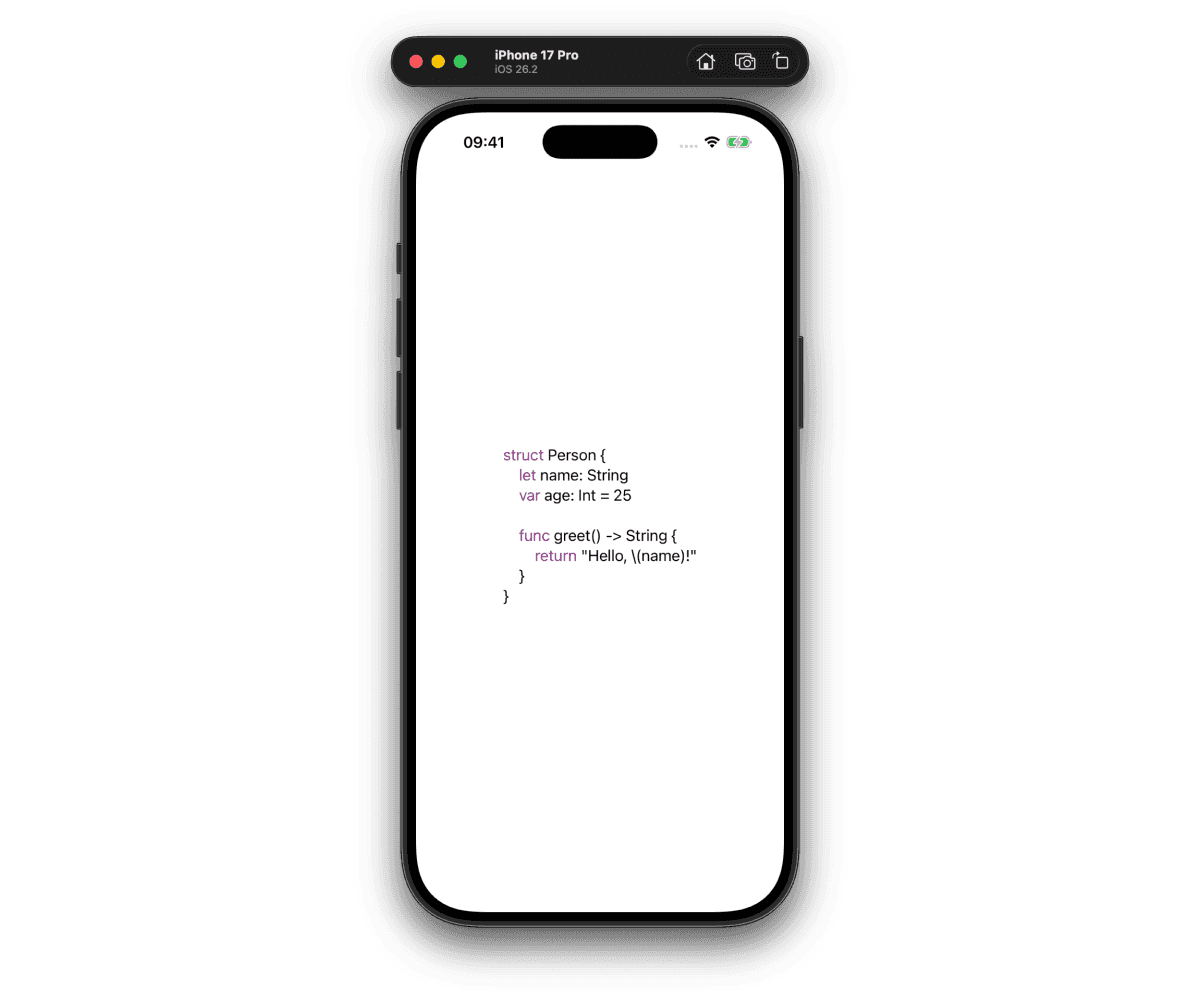
You can extend this logic to support more token kinds. Finally, let's set a monospaced font for better code readability:
highlightedString.font = .system(.body, design: .monospaced)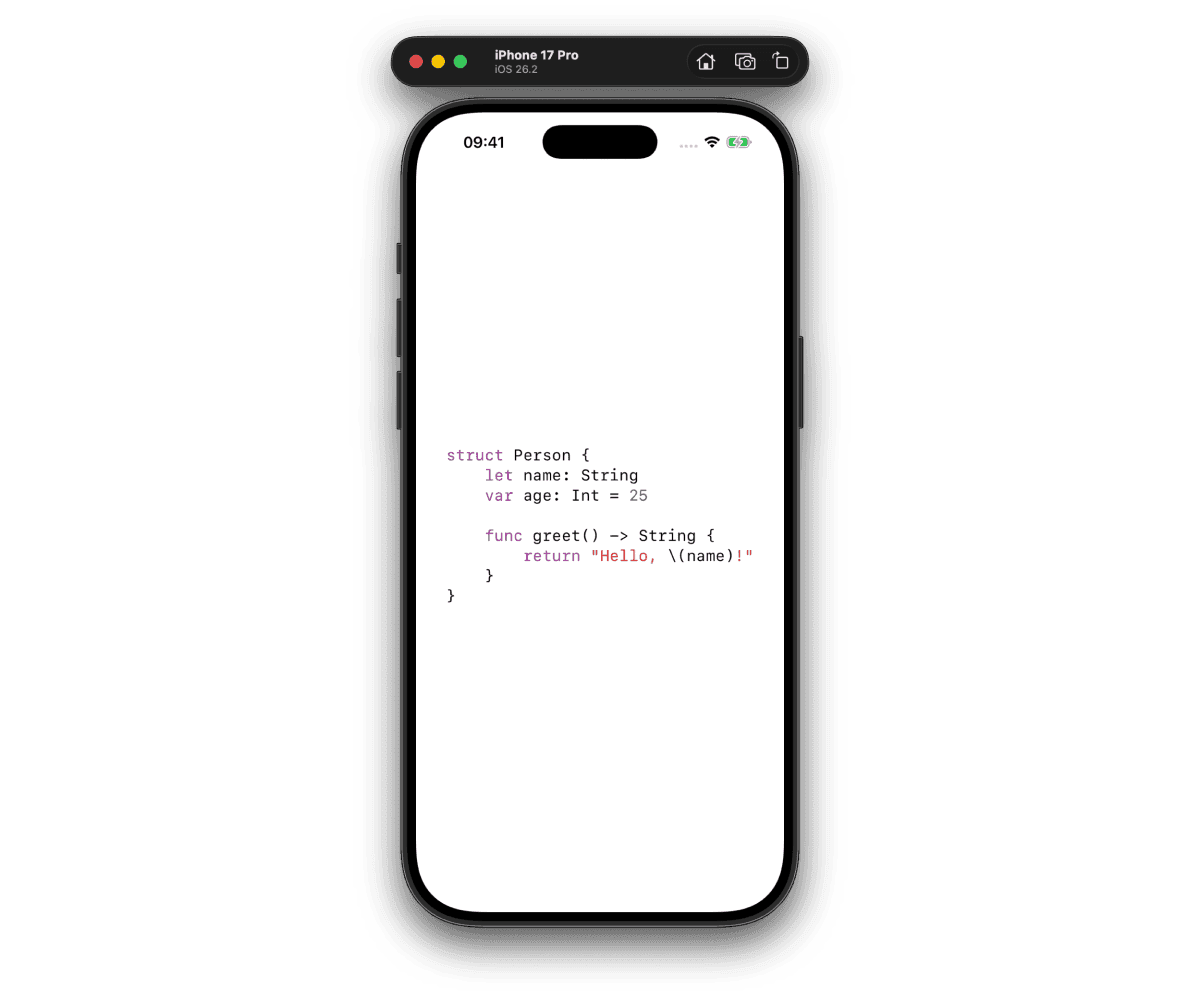
Now that Swift code highlighting works, let's apply it to Markdown code blocks.
Working with Markdown code blocks
According to the last CommonMark specification, code blocks can be created in three ways:
- Inline code block (placing single backticks (`) before and after the code);
- Indented code blocks (placing four spaces before each line of code);
- Fenced code blocks (placing three consecutive backtick characters (`) or tildes (~) before and after the code block).
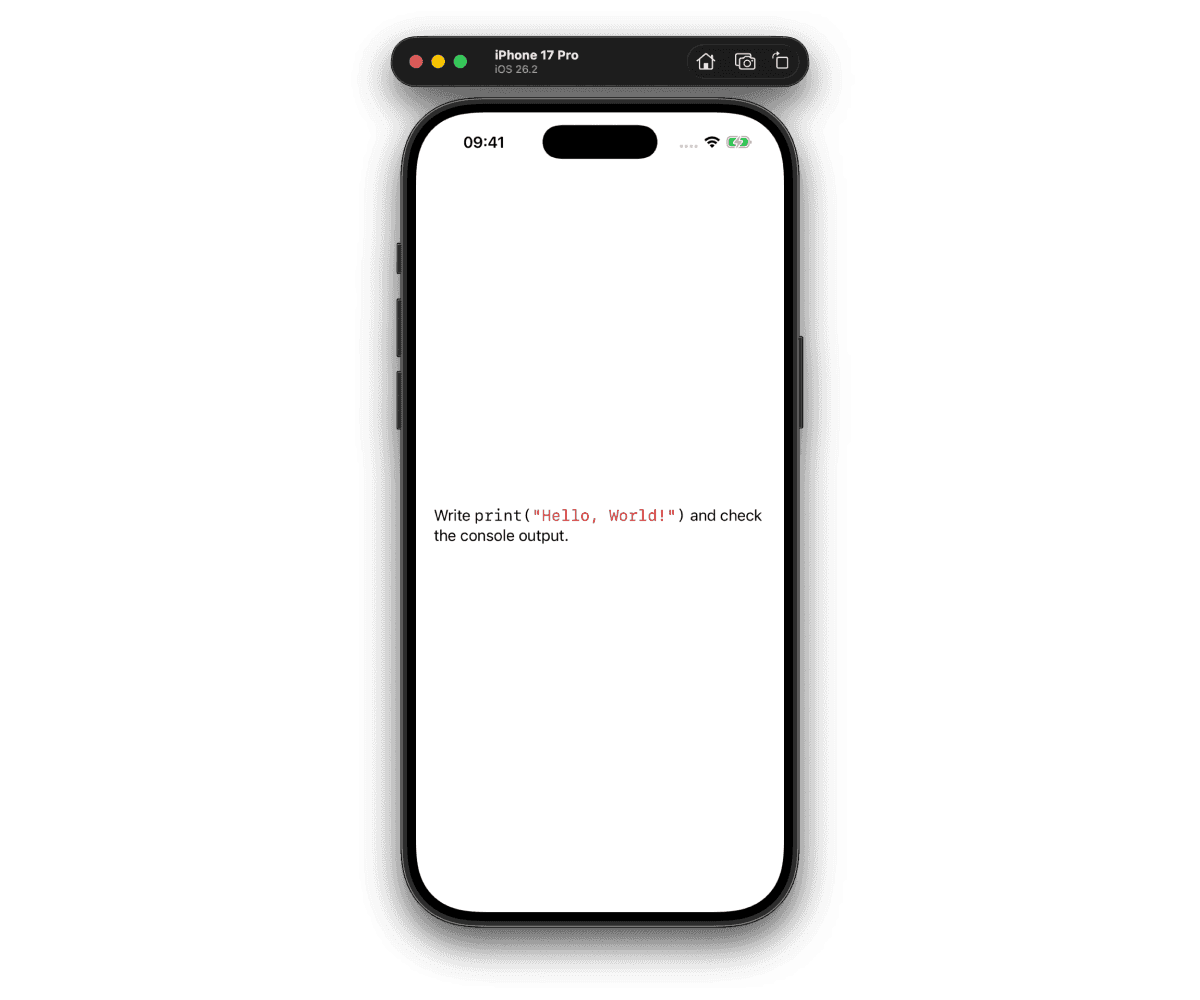
Let's start with inline code blocks and use this Markdown snippet:
Write `print("Hello, World!")` and check the console output.Write another function to highlight code inside Markdown:
static func highlight(markdown: String) -> AttributedString {
    guard var highlightedString = try? AttributedString(markdown: markdown) else {
        return AttributedString(markdown)
    }

    // Main logic

    return highlightedString
}
If parsing fails, return the original string.
Print highlightedString.runs to see how the string was parsed:
Write  {
	NSPresentationIntent = [paragraph (id 1)]
}
print("Hello, World!") {
	NSPresentationIntent = [paragraph (id 1)]
	NSInlinePresentationIntent = NSInlinePresentationIntent(rawValue: 4)
}
 and check the console output. {
	NSPresentationIntent = [paragraph (id 1)]
}
Next, iterate through all runs and look for inline presentation intent:
for run in highlightedString.runs {
    if run.inlinePresentationIntent == .code {
        let code = String(highlightedString[run.range].characters)
        let highlightedCode = highlight(code: code)
        highlightedString.replaceSubrange(run.range, with: highlightedCode)
    }
}
Continue with indented code block and update the example:
Write this code and check the console output:

    print("Hello, World!")
If we print highlightedString.runs, we'll see 2 runs in the console:
Write this code and check the console output: {
	NSPresentationIntent = [paragraph (id 1)]
}
print("Hello, World!")
 {
	NSPresentationIntent = [codeBlock '<none>' (id 2)]
}
Here we inspect the presentationIntent attribute. It contains an array of components, so we need to iterate through them:
if let presentationIntent = run.presentationIntent {
    for component in presentationIntent.components {
        if case .codeBlock = component.kind {
            let code = String(highlightedString[run.range].characters)
            let highlightedCode = highlight(code: code)
            highlightedString.replaceSubrange(run.range, with: highlightedCode)
        }
    }
}
The result looks odd:
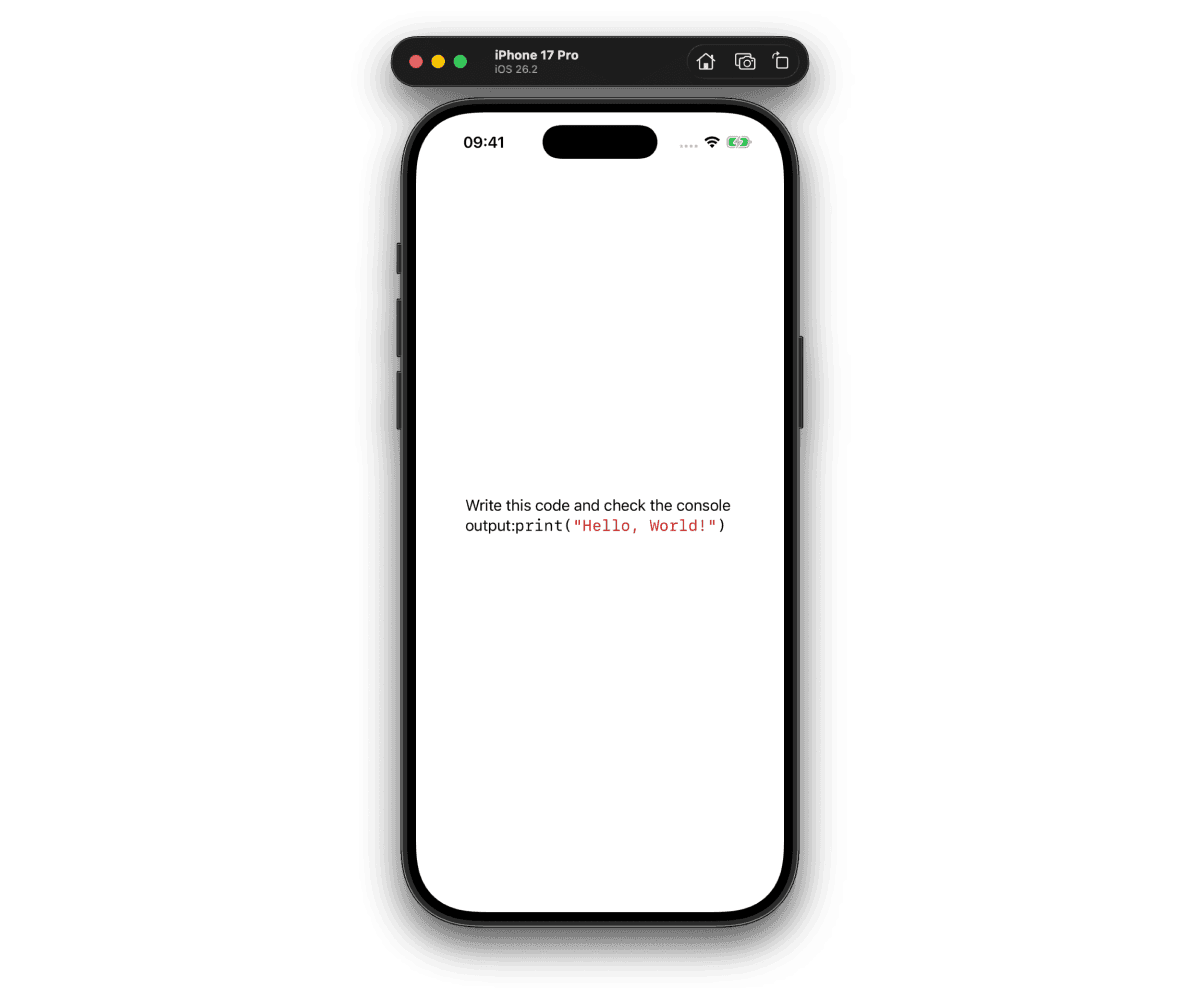
Actually, it works as expected. According to CommonMark specification, indented code blocks cannot interrupt a paragraph. To fix it in CommonMark, we can add an extra line break before the code block. But it doesn't work in Foundation parser. The Text documentation confirms this:
Textdoesn't render all styling possible in Markdown. It doesn't support line breaks, soft breaks, or any style of paragraph- or block-based formatting like lists, block quotes, code blocks, or tables.
\n and extra whitespace don't solve the problem. A workaround is to insert a line separator (\u) before the indented code block:
Write this code and check the console output:\u{2028}

    print("Hello, World!")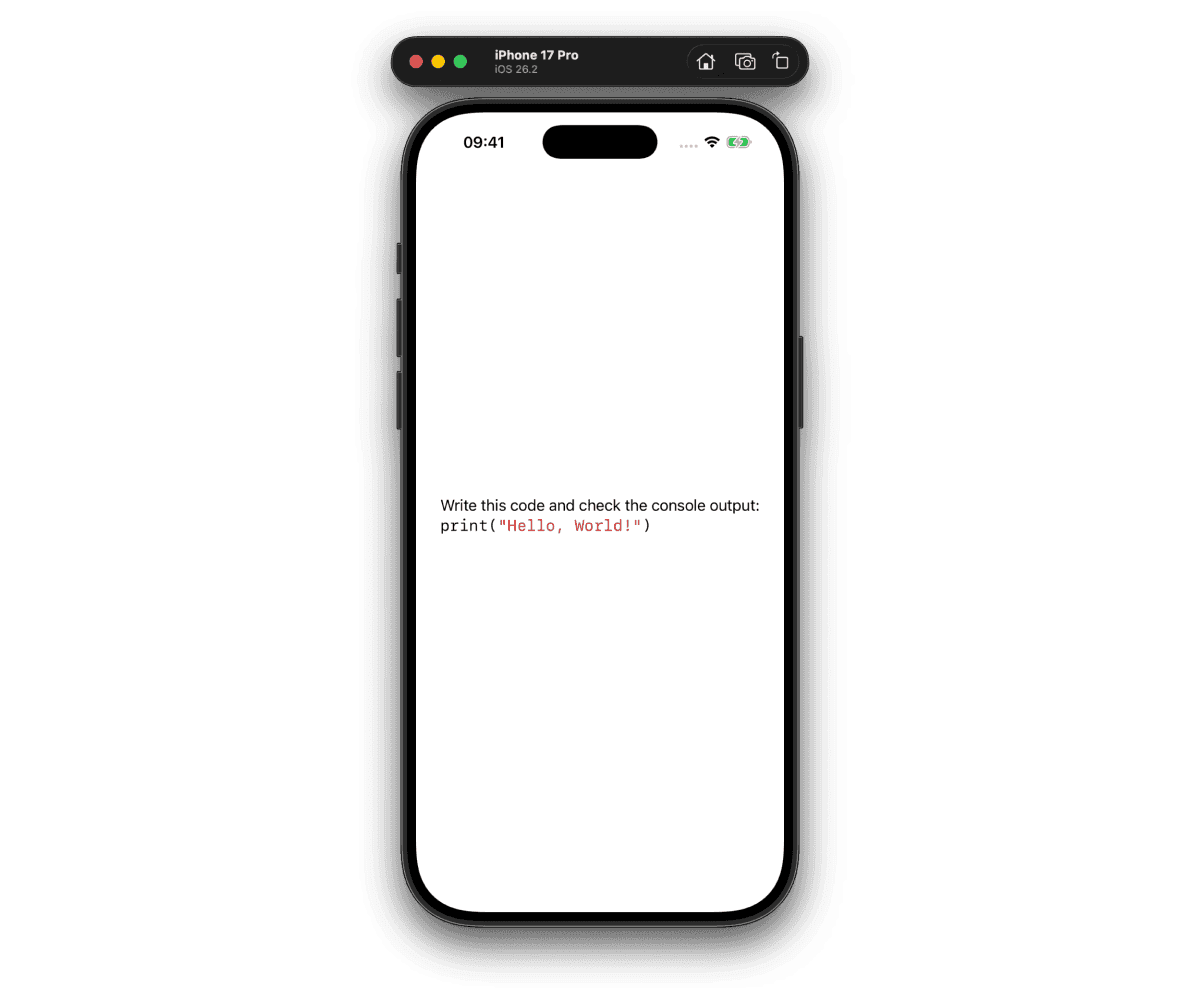
Let's move to fenced code blocks. Here's the Markdown snippet:
Write this code and check the console output:
```
print("Hello, World!")
```
The logic is the same as for indented code blocks, we just need to check for codeBlock kind in presentation intent components. And the same issue with paragraph interruption exists here as well. So we can use the same workaround with line separator.
Additionally, fenced code blocks can have an optional language hint right after the opening backticks or tildes. Let's update the example to include a language hint:
Write this code and check the console output:
```swift
print("Hello, World!")
```
We can extract the language hint from codeBlock component:
if case .codeBlock(let languageHint) = component.kind {
    print(languageHint) // prints Optional("swift")
    let code = String(highlightedString[run.range].characters)
    let highlightedCode = highlight(code: code)
    highlightedString.replaceSubrange(run.range, with: highlightedCode)
}
It may be useful if you want to support highlighting for multiple programming languages.
Conclusion
In this post, we explored how to implement syntax highlighting for Swift code using SwiftSyntax. This approach can be extended further to support more programming languages and additional Markdown features as needed.
Based on this implementation, I created a small open-source library called Lustre that provides syntax highlighting for Swift code in SwiftUI applications. Feel free to check it out. And thanks for reading!